Sign up & profile
Your clinician profile drives what patients see on invite emails, what appears on session PDFs, and the provider fields on every billing document. Two things live here: the four-step sign-up wizard you run once, and the Profile page you come back to.
Walkthrough
Signing up
Four steps, run once. Quick Start walks through them in order; below is the field-level detail.
| Step | Collects |
|---|---|
| 1. Create your account | Work Email, Password, Confirm Password. 8+ characters, with a strength meter |
| 2. Tell us about yourself | Your name, NPI, and practice details — fields below |
| 3. Personalize your workspace | Three picks that shape your default views. Skippable, and editable later under Caseload & Focus |
| 4. Verify your account | The 6-digit code emailed to you. Resend Code if it expired; you're signed in automatically |
Your account is created at the end of step 2, which is when the verification code goes out.
Joining an existing organization? An admin sends you an email invite from their Members page; the invite link walks you through password, verification, and profile. Links expire after 7 days.
Step 2 fields
| Field | Required? | Notes |
|---|---|---|
| First / Last Name | Yes | Must match the name registered with your NPI. Middle name optional |
| Preferred Display Name | Optional | Shown in place of your legal name where applicable |
| NPI Number | Yes* | 10 digits; click Verify NPI to check it against the registry before continuing. Changing your name or NPI afterward re-requires verification |
| Provider Type | Yes | The primary taxonomy of the NPI number |
| Address | Yes | Your practice address |
| Designation | Yes | e.g., Dr, RDN |
| Organization Name | Yes | Or your full name if self-employed |
*A Special Access Code field lets invited pilots skip NPI verification; with a valid code the NPI becomes optional and the Verify NPI button disappears.
Your profile page
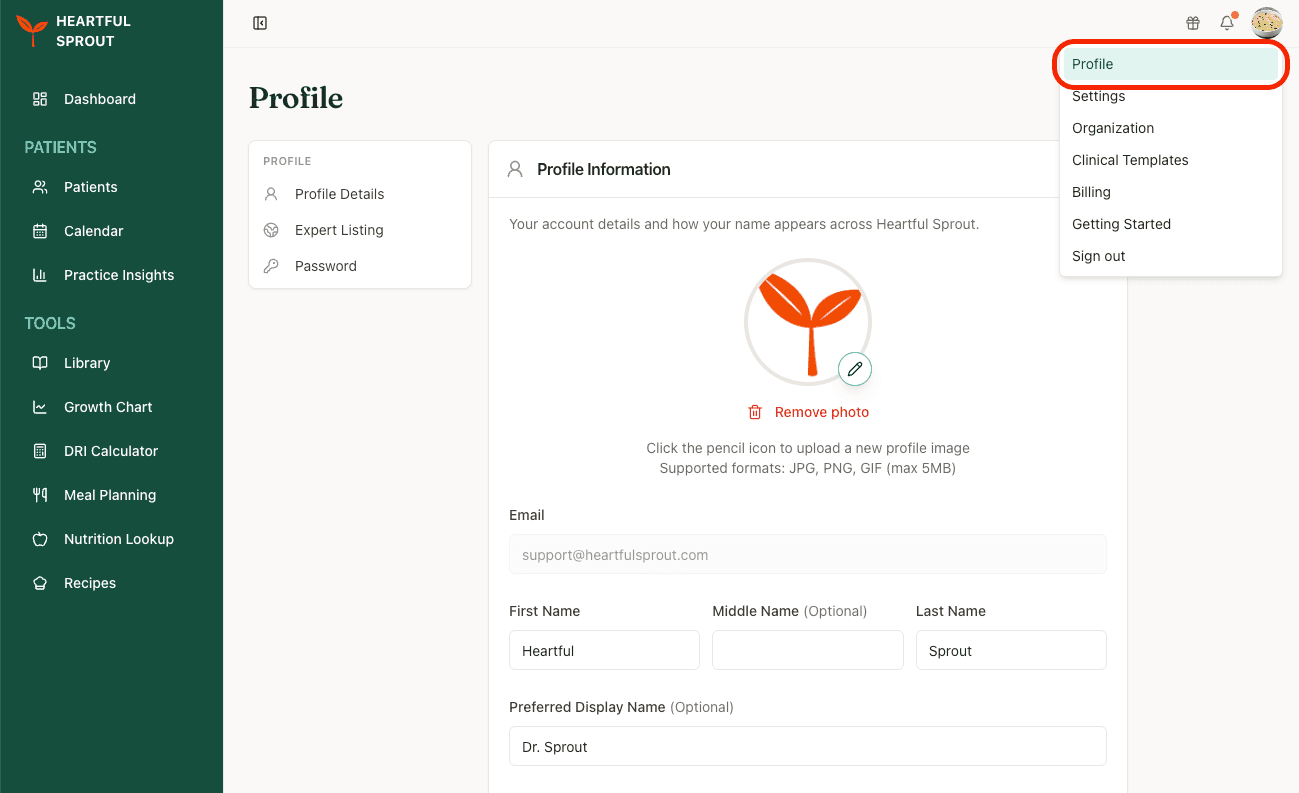
Avatar menu → Profile — separate from Settings, and where your own details live. Three sections, listed on the left.
| Section | What's there |
|---|---|
| Profile Details | Profile photo (click the pencil on the avatar; JPG, PNG, or GIF up to 5 MB), name fields, preferred display name, NPI, designation, provider type. Email is read-only |
| Directory Listing | Opt-in listing in the public care-provider directory — Directory Listing |
| Password | Change your password with the old one |
Your profile photo appears on patient invite emails and inside the patient app's clinician card.
Directory Listing
An opt-in profile in the public care-provider directory, so families searching for a clinician can find you. Nothing publishes until you turn the listing on. Full field list and the publishing steps: Directory Listing.
What's next
Your account exists, but the platform doesn't know how you work yet. Continue down the setup sequence — App preferences is next — or jump straight to adding your first patient.