App preferences
Two personal defaults, plus your active sessions. All three live under Avatar menu → Settings, and each applies to your own account only — not your colleagues'.
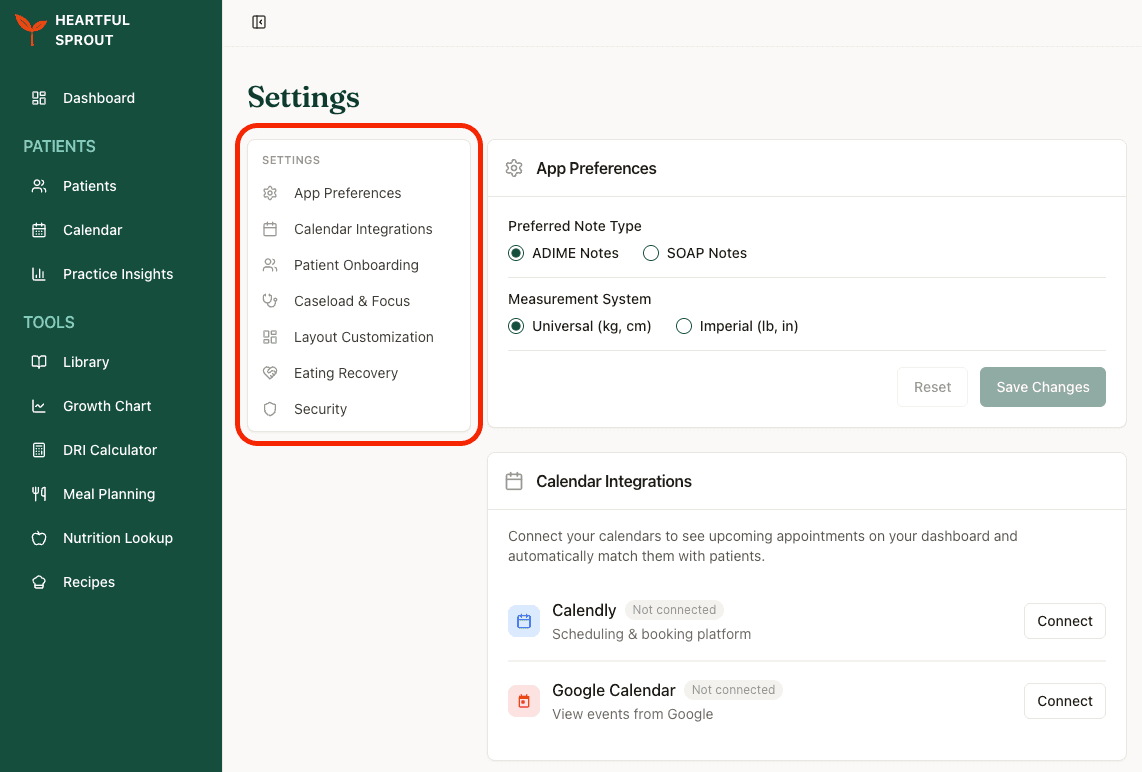
Preferred Note Type
The structure of your session notes. Pick one and click Save Changes; Reset discards edits you haven't saved.
| Option | Sections |
|---|---|
| ADIME Notes | Assessment, Diagnosis, Intervention, Monitoring, Evaluation. The default |
| SOAP Notes | Subjective, Objective, Assessment, Plan |
Every new session starts in the type you set here. You can still switch per visit: Step 2 of the session workflow has an ADIME / SOAP Notes card with its own ADIME and SOAP radios, under the notes editor. That choice belongs to that session alone — see Notes.
Switching is never retroactive. The note type is saved onto each session when you write it, and notes are displayed and exported using their own stored value. A note written as ADIME stays ADIME forever.
Measurement System
| Option | Units |
|---|---|
| Universal | kg, cm. The default |
| Imperial | lb, in |
Where it applies: the growth chart and the add-growth-data forms, the Meal Planning tool's height and weight inputs, the DRI Calculator and Nutrition Lookup, and Step 4 of the session workflow.
Where it doesn't: the session summary PDF, which always prints metric, and food serving sizes in a meal plan, which come from the food data itself.
Security
The last section on the same Settings page. It lists your active sessions per device — device name, IP, location, and when it was created, with your current one badged. Terminate ends one session; Sign out all sessions ends every one.
Caseload & Focus
Three quick picks that shape your default views — asked once during sign-up, editable anytime at Avatar menu → Settings → Caseload & Focus.
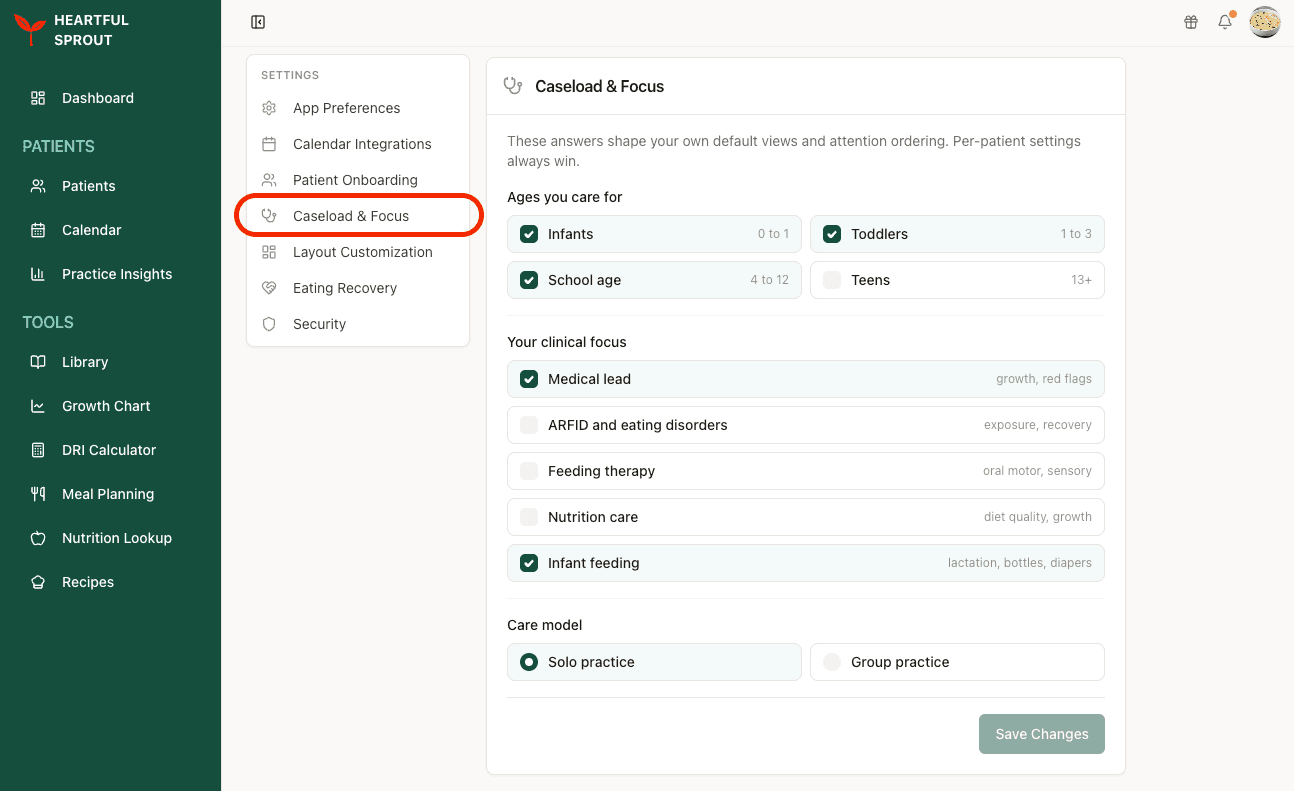
The three questions
1. Ages you care for
| Option | Range |
|---|---|
| Infants | 0 to 1 |
| Toddlers | 1 to 3 |
| School age | 4 to 12 |
| Teens | 13+ |
2. Your clinical focus
| Option | Covers |
|---|---|
| Medical lead | Growth, red flags |
| ARFID and eating disorders | Exposure, recovery |
| Feeding therapy | Oral motor, sensory |
| Nutrition care | Diet quality, growth |
| Infant feeding | Lactation, bottles, diapers |
3. Care model
Pick one: Solo practice or Group practice.
Click Save Changes when you're done. There's no Reset button on this card.
What your answers change
Your answers tune what you see first. They never delete anything, and anything you set on an individual patient always wins.
- Your queues. Items matching your clinical focus are promoted in Needs Your Attention and in the notification bell, so the work you care about surfaces higher.
- The Library. Categories matching your focus sort to the front, on the Library page and in the handout picker. Nothing is filtered out.
- Patient charts. Caring only for older ages hides Milestones and Vaccines, the two records those age groups rarely need. No other record is affected — Growth and Sessions always stay, and the app-fed records follow the family's Program Access.
These are yours alone. A teammate's answers never change your views.
To change what every chart in your practice shows, or which Summary cards appear, use Layout customization instead.
Layout customization
This page sets what a patient chart looks like across your whole organization. You choose which record sections appear on the tabs, and which cards a new patient's Summary tab opens with.
Where to set this
Go to Avatar menu → Settings → Layout Customization. Admins and Members can change these settings, and Viewers see them read-only.
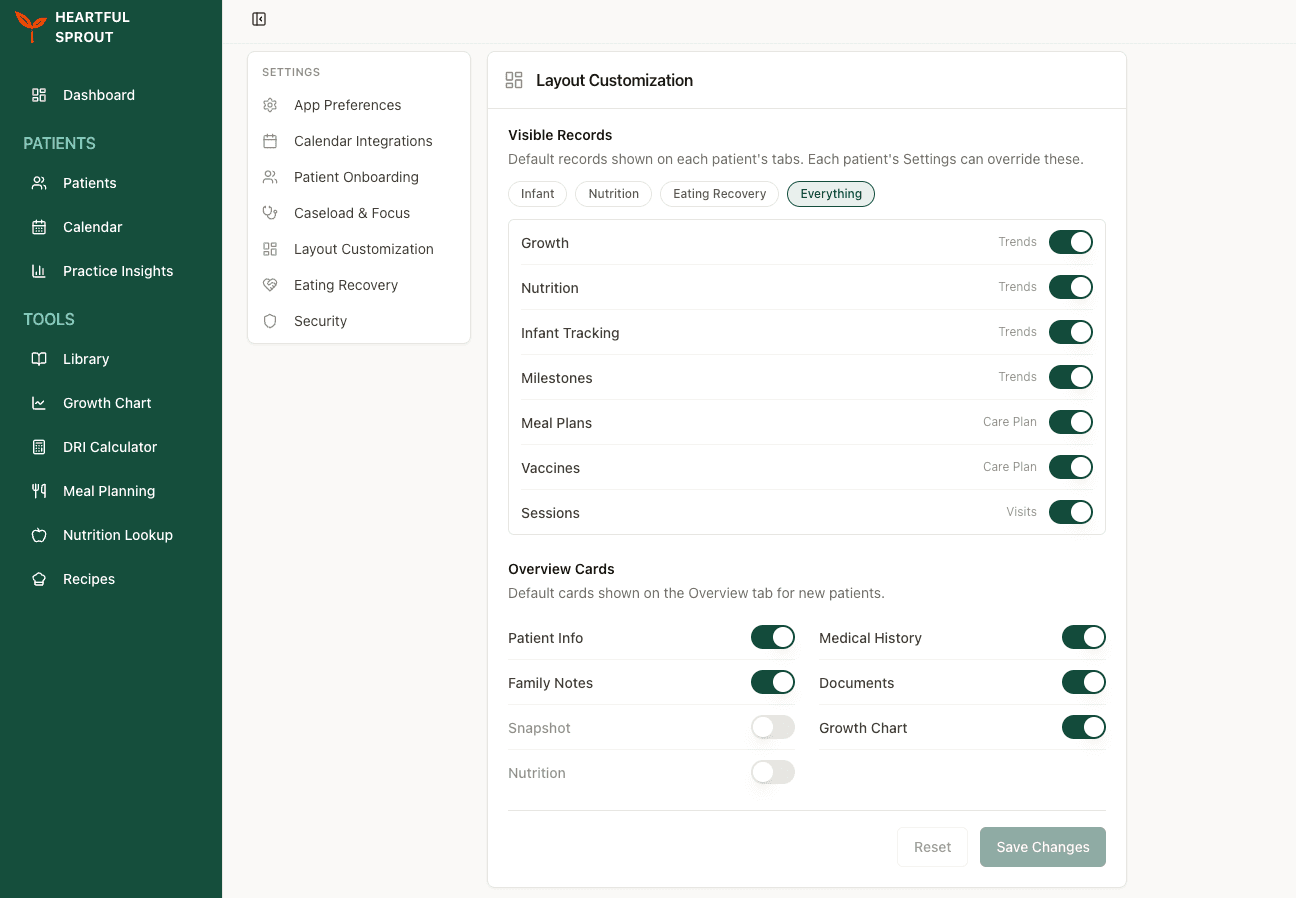
Visible Records
These toggles decide which records appear on each patient's tabs. Any individual patient's Settings can override them.
The four presets — Infant, Nutrition, Eating Recovery, and Everything — are shortcuts that flip the toggles below for you. You can adjust any switch afterwards.
| Toggle | Appears on |
|---|---|
| Growth | Trends |
| Nutrition | Trends |
| Infant Tracking | Trends |
| Milestones | Trends |
| Meal Plans | Care Plan |
| Vaccines | Care Plan |
| Sessions | Visits |
A record still needs data behind it. The app-fed records stay empty until the family's Program Access turns on the app that feeds them.
Overview Cards
These toggles decide which cards a new patient's Summary tab opens with. The settings page calls it the Overview tab, but the tab on the chart itself is labelled Summary.
| Card | On by default |
|---|---|
| Patient Info | Yes |
| Medical History | Yes |
| Family Notes | Yes |
| Documents | Yes |
| Growth Chart | Yes |
| Snapshot | No |
| Nutrition | No |
These apply to new patients only, so changing them will not reshuffle the charts you already have.
Click Save Changes to apply either group. Reset discards anything you have not saved.
What overrides what
Four layers decide what a chart shows, and each one below overrides the one above it.
- Platform defaults ship with the product.
- Organization defaults are what you set on this page.
- Each member's Caseload & Focus answers can hide Milestones and Vaccines for that person.
- Per-patient chart setup always wins, on the patient's own Settings tab.
Why this matters
Good defaults cut clutter and put the right information first for the patients you actually see. A dietitian working on solids might hide Vaccines and Milestones, while a nurse practitioner running well-child visits would want everything visible.