Organization setup
The Organization page holds your org profile and your team. Reach it from the Avatar menu → Organization; two sections, Organization Info and Members.
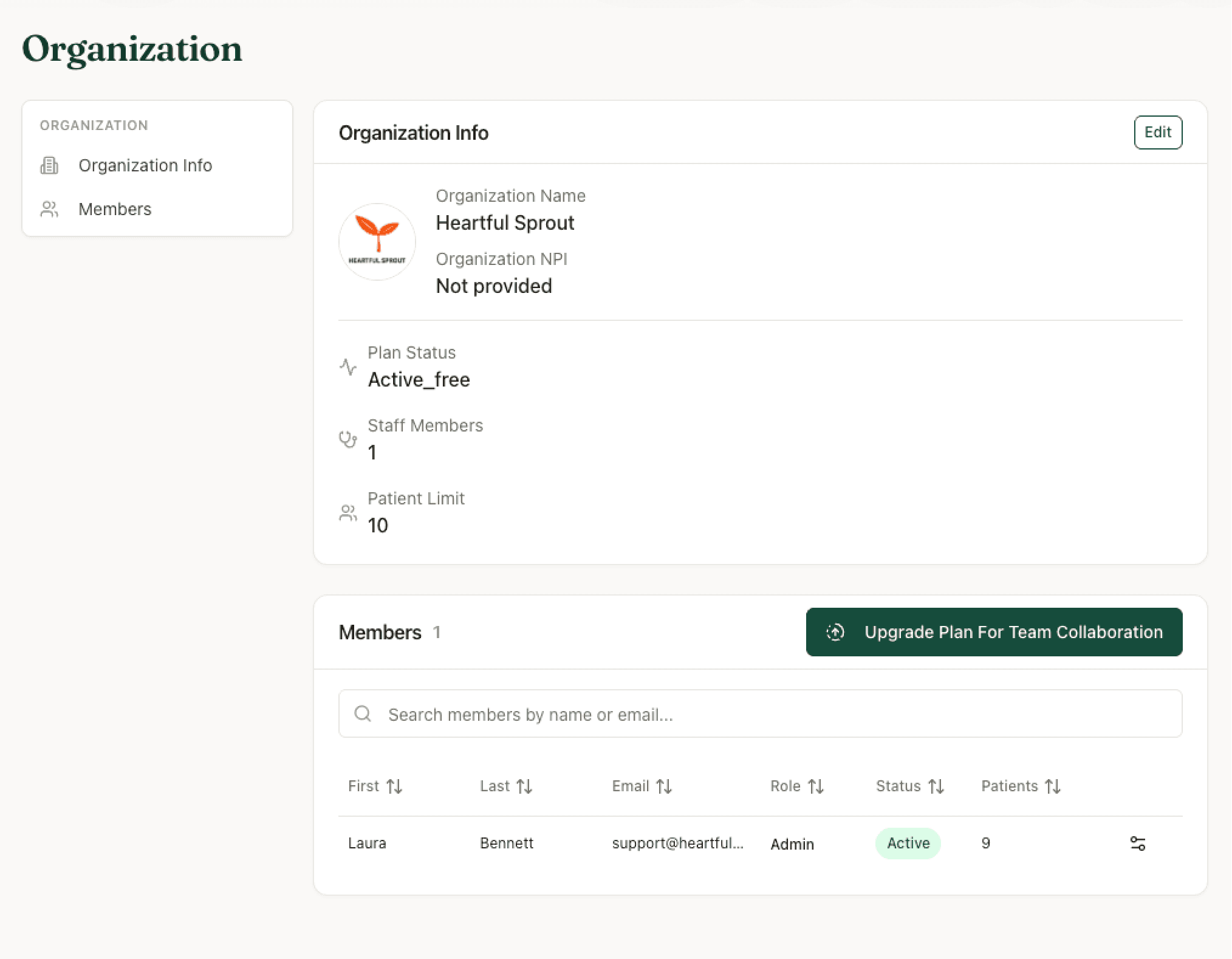
Organization Info
Editable by admins via the Edit button:
| Field | Notes |
|---|---|
| Organization logo | Avatar shown on the Organization page |
| Organization Name | Used in staff invitation emails |
| Organization NPI Number | Optional |
Read-only alongside: Plan Status, Staff Members count, and Patient Limit.
Billing details for documents (tax ID, billing address, phone) are per-clinician, not organization-level. Each provider sets their own under Avatar menu → Billing → Billing Settings (doc).
Members
The team table — first name, last name, email, role, status, patient count — with Invite Staff Member and per-member management. Every column sorts, and a search box filters by name or email. Details: Team members & roles.
On the Free plan (single seat), the invite button is replaced by an Upgrade Plan For Team Collaboration prompt, as in the screenshot above.
Deleting the organization
Delete Organization routes to a contact-support dialog; deletion goes through support@heartfulsprout.com.
Team members & roles
Three roles control what each user can do in your organization. Manage them at Avatar menu → Organization.
Roles
| Role | What they can do |
|---|---|
| Admin | Full access to all patients and organization settings — members, plan, org profile |
| Member | Access to patient records and sessions; can add and manage patients |
| Viewer | Read-only access to patient records — no adding patients, sessions, or edits |
Viewers see read-only banners on Settings, Organization, Billing, and patient Settings pages.
Inviting a member
- Organization → Members → Invite Staff Member.
- Enter name, email, and role.
- They receive an invite link — the acceptance page walks them through setting a password, verifying their email, and completing their professional profile.
Invitations expire after 7 days. Expired or already-used links show a clear error; just send a fresh invite.
Team invites require a plan with more than one seat — the Free plan is single-seat. See Plans, seats, patient limits.
Managing members
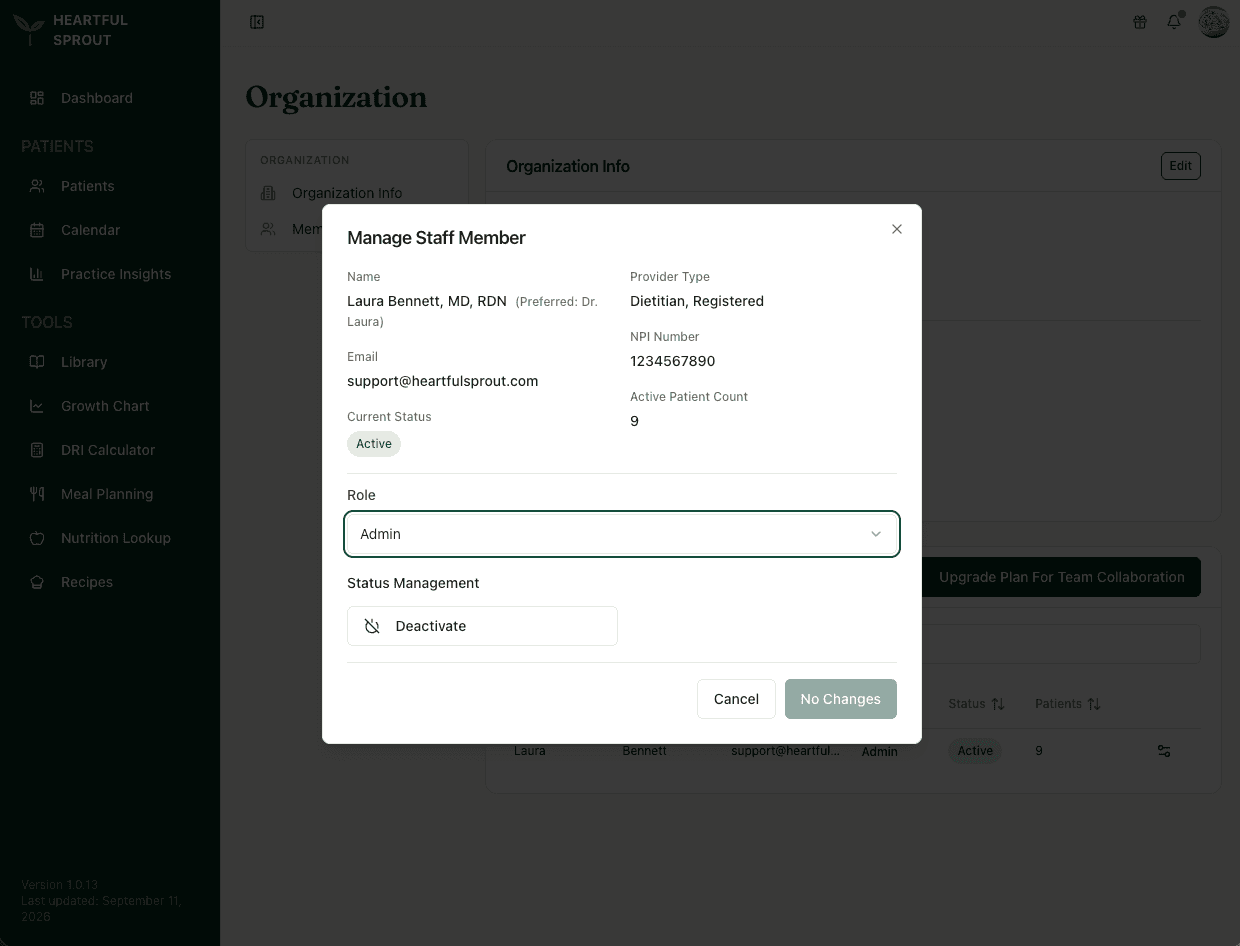
From the member's Manage dialog, opened from the icon at the end of their row (admins only):
- Change role — takes effect immediately.
- Deactivate / Reactivate — a deactivated member sees an "Account Deactivated" screen on next sign-in; their patients stay with the organization.
- Delete — removes the account after confirmation.
The dialog also shows their details read-only — provider type, NPI, email, current status, and active patient count — so you can check a caseload before deactivating. The save button stays disabled, reading No Changes, until you actually change something.
An organization must always have at least one Admin. Each patient has a Primary Clinician (set on the patient's Settings → Patient Status) — reassign patients there when someone leaves.