Google Calendar
Show your Google appointments in the in-app calendar alongside Calendly events.
Setup
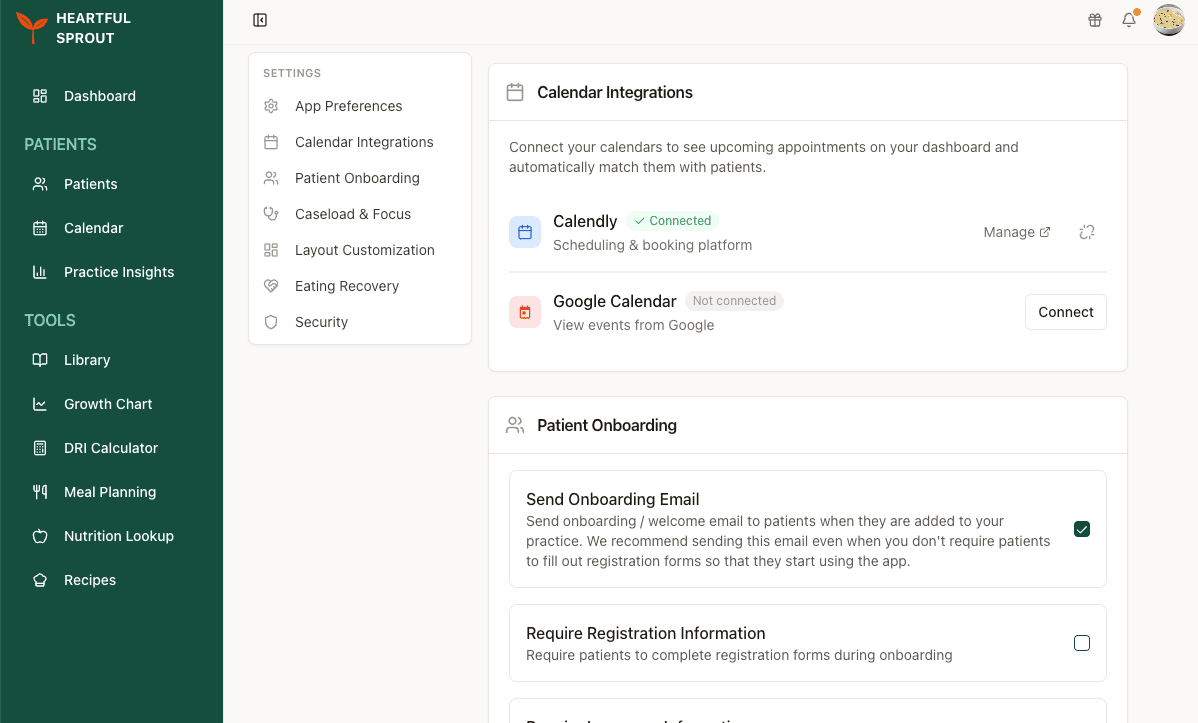
- Go to Avatar menu → Settings → Calendar Integrations, find the Google Calendar row, and click Connect.
- Sign in with your Google account.
- Approve the requested scopes: read-only calendar access plus your account email (used to identify the connection).
Permissions
| Action | Allowed? |
|---|---|
| Read events from your primary calendar | Yes |
| Create / edit / delete events | No |
| Access other calendars or Google services | No |
After connecting
- Events from your primary Google calendar appear in the in-app Calendar with a red Google badge.
- Google events are display-only; patient matching and context apply to Calendly events. See Patient context on events.
- A connected row shows a green Connected badge and the account email, with Open to jump to Google Calendar and an unlink button to disconnect.
Calendly
When Calendly is connected, each appointment is matched to a patient record by invitee email.
Setup
- Go to Avatar menu → Settings → Calendar Integrations, find the Calendly row, and click Connect.
- Authorize Heartful Sprout to read your scheduled events.
- (Recommended) In Calendly, set up your patient-intake event types so the invitee's email is a required field.
After connecting
- Calendly events appear in the in-app Calendar with a blue badge.
- Matched events show patient context in the Event Details sidebar: primary diagnosis and last session summary. See Patient context on events.
- Unmatched events offer Link to Existing Patient and Add as New Patient, and upcoming ones surface on the Dashboard's Unmatched Appointments card.
Disconnecting
Return to the same Calendar Integrations card. A connected row shows a green Connected badge, a Manage link out to your Calendly event types, and an unlink button that disconnects it.