Onboarding email & defaults
This page sets what every new patient invite carries, for your whole practice. You will find it at Avatar menu → Settings → Patient Onboarding.
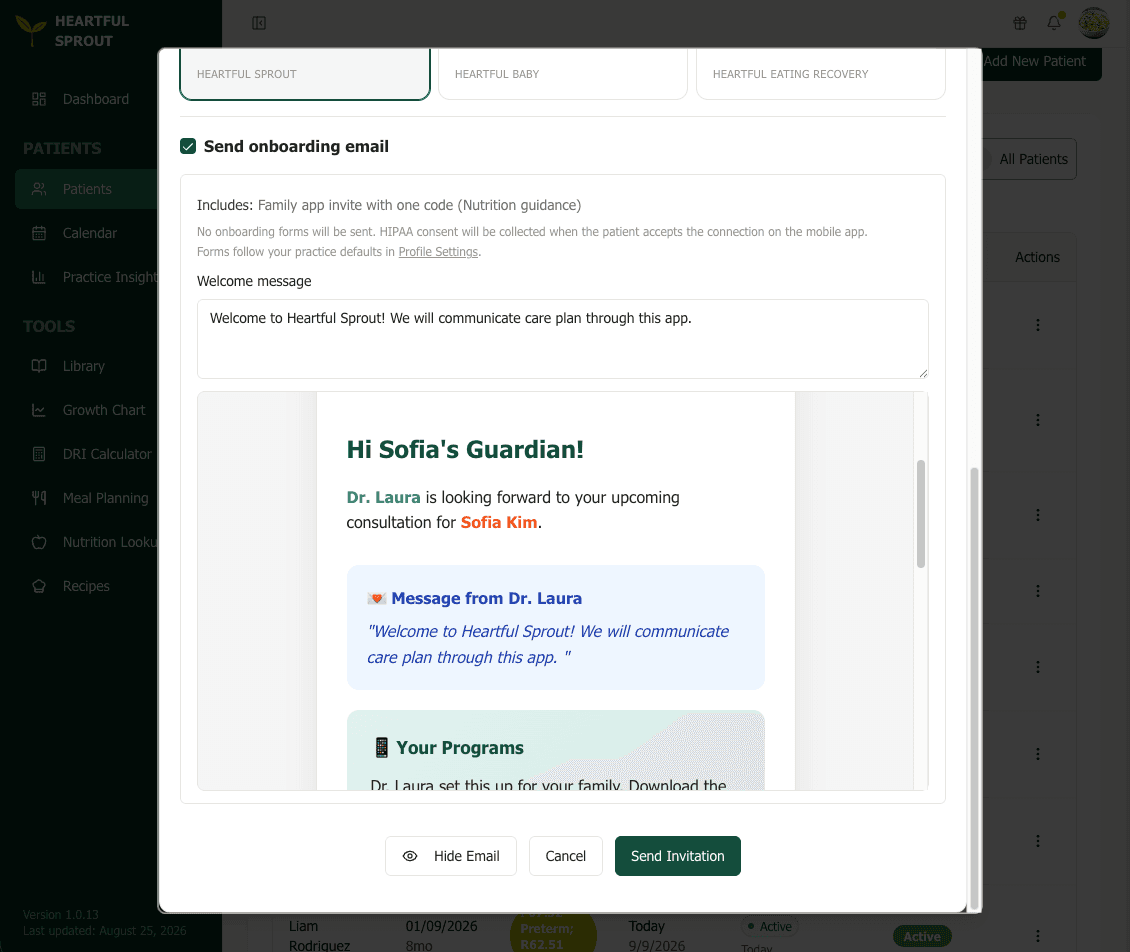
The email itself contains the family's invite code, a download link for each app you turned on, your optional welcome message, and any forms required below. If onboarding is not finished, the platform sends automatic reminders on day 3 and day 7.
What you can configure
| Default | Effect |
|---|---|
| Send Onboarding Email | Auto-email to the guardian with the invite code, app download links, and any required forms |
| Require Registration Information | Family must complete registration during onboarding |
| Require Insurance Information | Insurance details collected during onboarding |
| Custom PDF Onboarding Forms | Upload your own PDFs; families sign them during onboarding |
Turning off Send Onboarding Email turns off onboarding forms. The forms reach the family through that email — with it disabled, there is no way for them to fill anything out, so registration, insurance, and your custom PDFs are all effectively skipped. If your defaults require any of them, the invite dialog flags the conflict when you send.
HIPAA consent
When no onboarding forms are required, HIPAA consent isn't collected by email — the family consents in the patient app when they accept the connection. See HIPAA consent.
Per-patient overrides
- At invite time, the Send onboarding email checkbox and its Includes: summary follow these defaults — adjust per patient before sending.
- After the invite, waive or re-require individual steps at Patient record → Settings → Onboarding, or Reset to Org Defaults. See When a family stalls.