The Program Access panel
The control center for a family's apps and invite code. Find it at Patient record → Settings → Program Access.
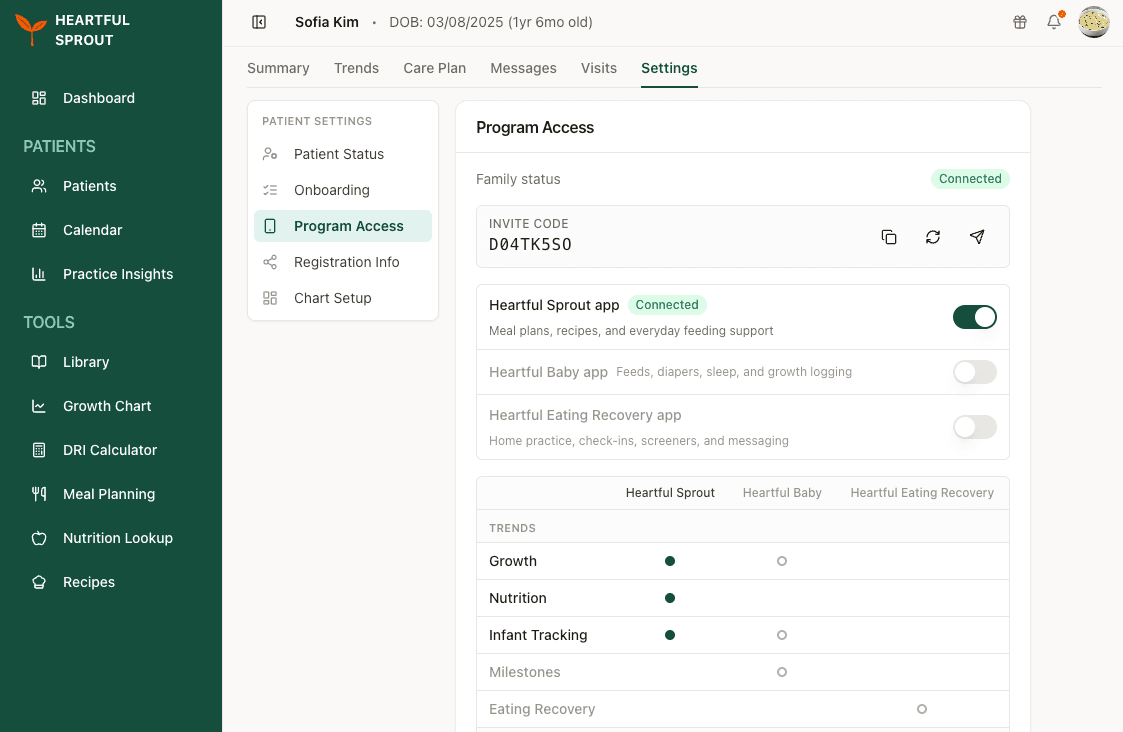
Family status
A status chip at the top shows where the family is:
| Chip | Meaning |
|---|---|
| Not invited | No programs turned on yet |
| Invite sent | Code issued; family hasn't connected |
| Connected | Family entered the code and consented |
| Deactivated | Access revoked |
The invite code block
- The code renders in monospace with three actions: Copy code, Issue a new code, and Send reminder email.
- Issue a new code invalidates the current code and mints one fresh code across every program that is turned on. Any app the family had already connected drops back to Invite sent, and they have to enter the new code again to reconnect. Their existing data stays in the record.
- Send reminder email re-sends the app invite ("Welcome from [your name] — let's get started!") with a preview before sending.
- If a family somehow ended up with more than one code, the panel shows a "This family has more than one invite code" alert with an Issue one code button to consolidate.
Program switches
Each program is a switch row — Heartful Sprout app, Heartful Baby app, Eating Recovery app — with a per-app status chip.
- Turning on a program grants premium access and ties it to the family's single code.
- Turning off prompts a confirmation: the family loses access to that app's features, but everything they already shared stays in the record, and you can turn it back on later with a new invite.
What each app feeds into the record
At the bottom of the panel, a matrix shows which app populates each part of the chart. A filled dot means the family is on that app, so the record is receiving data now. A hollow dot means that app could feed the record, but it is not turned on for this family.
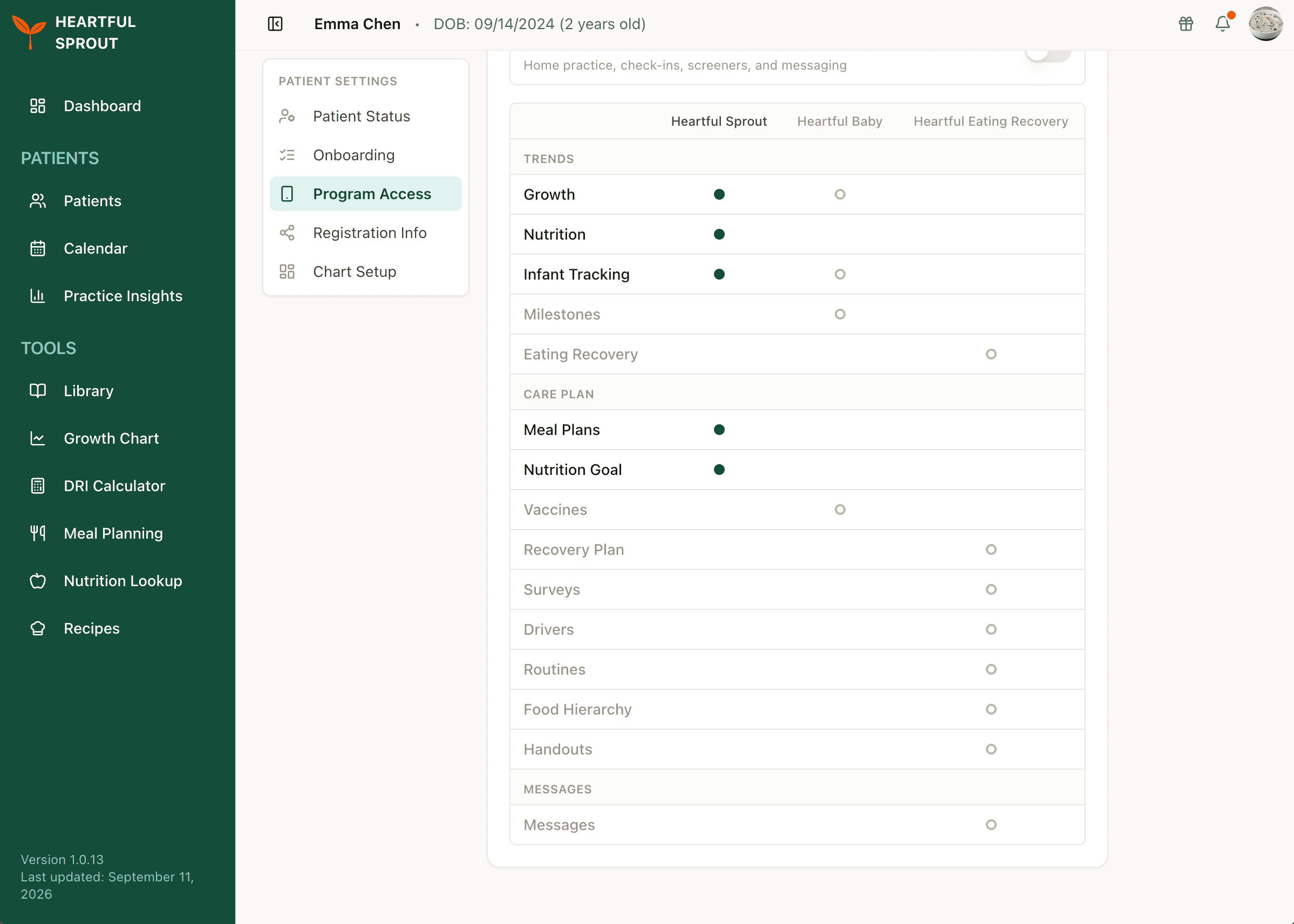
| Record | Tab | Fed by |
|---|---|---|
| Growth | Trends | Heartful Sprout, Heartful Baby |
| Nutrition | Trends | Heartful Sprout |
| Infant Tracking | Trends | Heartful Sprout, Heartful Baby |
| Milestones | Trends | Heartful Baby |
| Eating Recovery | Trends | Eating Recovery |
| Meal Plans | Care Plan | Heartful Sprout |
| Nutrition Goal | Care Plan | Heartful Sprout |
| Vaccines | Care Plan | Heartful Baby |
| Recovery Plan | Care Plan | Eating Recovery |
| Surveys | Care Plan | Eating Recovery |
| Drivers | Care Plan | Eating Recovery |
| Routines | Care Plan | Eating Recovery |
| Food Hierarchy | Care Plan | Eating Recovery |
| Handouts | Care Plan | Eating Recovery |
| Messages | Messages | Eating Recovery |
If a tab looks empty for a family who is connected, check this matrix first. The data may belong to an app they do not have turned on.
Archiving & reactivating
When you stop seeing a family, archive the patient rather than deleting them. Archiving keeps the whole record, ends the app connection, and frees a patient slot on your plan.
Archiving a patient
You can archive from two places: the patient's own Settings → Patient Status card, or the actions menu on their row in the Patients list. Both ask you to confirm first.
Archiving does several things at once:
| What happens | Detail |
|---|---|
| The patient becomes Inactive | They drop off your active roster and out of the engagement columns |
| The app connection ends | The family's link to your practice is removed, so no new logs reach you |
| Eating Recovery access is revoked | If that program was on, the invite is withdrawn |
| Premium app access ends | The complimentary Heartful Sprout and Heartful Baby access you granted is revoked |
| A patient slot frees up | Your seat counter only counts active patients |
Nothing is deleted. Every session note, growth measurement, and log the family already shared stays on the record, and it all comes back if you reactivate them.
Reactivating
Find the patient in your Patients list and choose Reactivate from their row's actions menu. The option only appears on archived patients.
Reactivating restores the record, but it does not restore the family's app connection. If they should be using an app again, turn the programs back on from Patient record → Settings → Program Access and send them the new invite code. See The invite code.
Reactivating puts the patient back on your active roster, so it consumes a patient slot again. If you are at your plan's limit, you will need to archive someone else or raise the limit first. See Plans, seats, patient limits.
Deleting
Deleting is permanent and is meant for records created in error, such as a duplicate or a test patient.
You cannot delete an active patient. The platform offers archiving instead, so a real family's history is never removed by accident. Archive the patient first if you genuinely need the record gone.
Which one do I want?
| Situation | Do this |
|---|---|
| The family finished care with you | Archive |
| You are at your patient limit and need room | Archive the families you no longer see |
| The family is returning after a gap | Reactivate, then reissue the invite code |
| You created the patient twice by mistake | Archive, then delete the duplicate |
| The family wants to stop sharing data, but stays your patient | Leave them active and turn off their programs in Program Access |